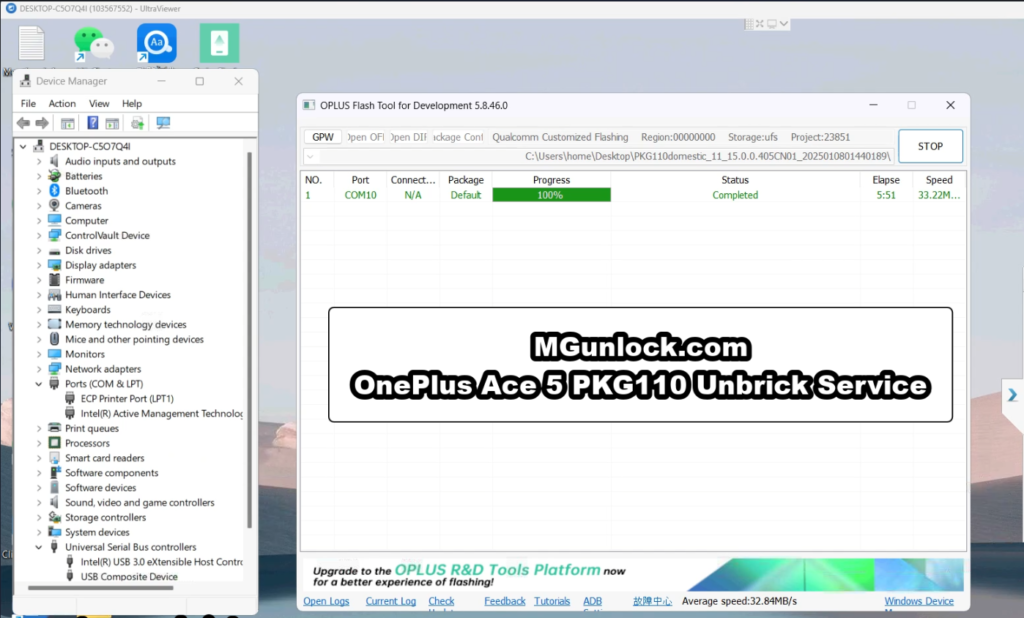
How to Unbrick OnePlus Ace 5 – PKG110 Firmware (Flash File)
Is your OnePlus Ace 5 – PKG110 stuck on the logo, trapped in Fastboot Mode, or completely unresponsive? This official firmware flash file is your ultimate fix for software-related issues, including boot loops, FRP lock, lost recovery mode, System Destroyed, black screen in EDL, white screen after flashing, and even devices that seem dead. Follow this guide to bring your device back to life and restore smooth performance in no time.
Prerequisites for Unbricking the OnePlus Ace 5 PKG110
Before starting the unbricking process, make sure you have the following:
- MSM Tool: The official Mobile Software Management tool for OnePlus. Download the correct version specific to the OnePlus Ace 5 PKG110 from trusted OnePlus sources or authorized distributors.
- A Windows PC: The MSM Tool is compatible with Windows computers, so you will need a PC running Windows 7 or later.
- USB Cable: A high-quality USB cable to connect your OnePlus Ace 5 PKG110 to the PC.
- Battery Charge Above 10%: While the device may be bricked, it’s recommended to have at least 10% battery to avoid any interruptions during the process.
- Qualcomm Drivers: Install the necessary Qualcomm drivers to ensure proper communication between your OnePlus Ace 5 PKG110 and the PC.
- Firmware for OnePlus Ace 5 PKG110: Ensure you have the correct firmware files for your device. Download the official firmware package from trusted sources or OnePlus support channels.
Step-by-Step Process for Unbricking the OnePlus Ace 5 PKG110 Using the MSM Tool
- Download and Install the MSM Tool
- Download the MSM Tool compatible with your OnePlus Ace 5 PKG110.
- Extract the downloaded zip file to a folder on your PC.
- Install Qualcomm USB Drivers
- Open Device Manager on your Windows PC.
- Right-click the Start Menu, select Device Manager.
- Find your OnePlus Ace 5 PKG110 under the “Ports” or “Other devices” section.
- Right-click the device, select Update Driver, and install Qualcomm USB drivers.
- Boot the OnePlus Ace 5 PKG110 into EDL (Emergency Download Mode)
- Power off your OnePlus Ace 5 PKG110 completely.
- Press and hold the Volume Up button, then connect the phone to the PC via USB.
- The device should automatically enter EDL mode and the MSM Tool should detect it.
- Launch the MSM Tool
- Open the MSM Tool you downloaded earlier.
- Ensure the device is detected. If not, check the Qualcomm drivers and retry.
- Start the Unbricking Process
- In the MSM Tool interface, click on the Start or Download button to begin the flashing process.
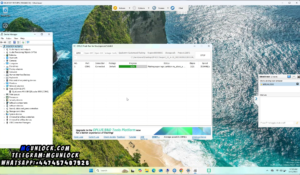
- The tool will begin flashing the firmware to your OnePlus Ace 5 PKG110. This may take several minutes, depending on your PC’s speed and device.
- Wait for the Process to Complete
- During the flashing process, the MSM Tool will show progress in percentages.
- DO NOT disconnect the device during this time as it could cause further bricking or software corruption.
- Reboot the Device
- Once the flashing process is complete, disconnect your OnePlus Ace 5 PKG110 from the PC.
- The device should now boot into the operating system, free from the bricked condition. Wait a few more minutes if it doesn’t boot up immediately.
Troubleshooting
- Device Not Entering EDL Mode: Double-check the steps and make sure the device is powered off. If it still doesn’t enter EDL, try using a different USB cable or port.
- MSM Tool Doesn’t Detect Device: Verify that Qualcomm drivers are installed correctly. Restart both the PC and the device if necessary.
- Flashing Fails: If the flashing process fails, repeat the procedure or try a different firmware version. Performing a factory reset after unbricking may also help.
Firmware Download to Unbrick OnePlus Ace 5
China Version – PKG110 Firmware
PKG110domestic_11_15.0.0.405CN01_2025010801440189.zip Download from Here
Tools
This is a Paid tool authorization is required.
Password: mgunlock.com
You can use our service below to unbrick OnePlus Ace 5
Contact Us on Telegram from here or WhatsApp from here If you need help.
Qualcomm, MTK platform – USB driver installation
- Download the driver file From Here
- Double-click to install (the default path does not need to be changed)
- Pop up a security window (always allow installation)
- Select restart the computer now
- Complete
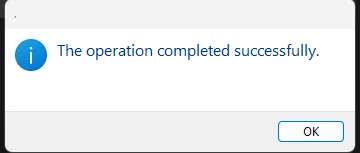
How To Unbrick OnePlus Ace 5 – mgunlock.com/
How to reboot EDL
- Connect one end of the USB cable to your PC.
- Then connect the other end to your device.
- Now press and hold the Volume Up, Volume Down. after the software launches, remove your hands (or when you see qualcomm 9008 appear in device manager)
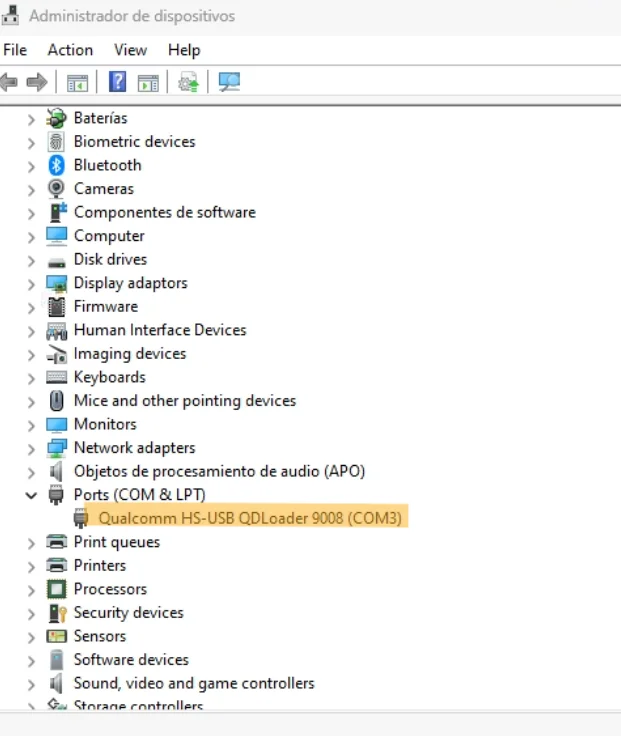
How To Unbrick OnePlus Ace 5 – mgunlock.com/
How to Unbrick OnePlus Ace 5
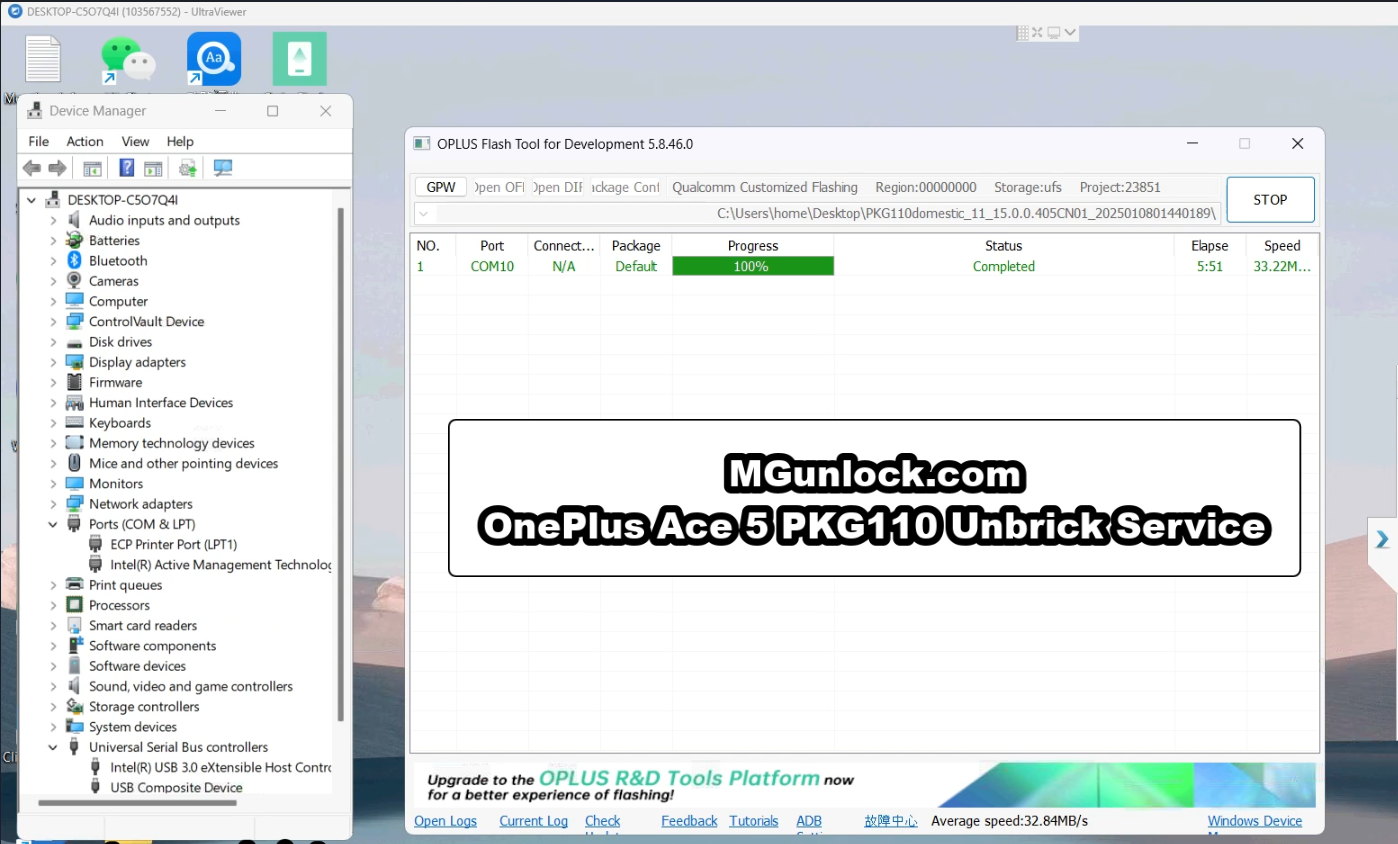
- Download, Extract ROM File & tool in same folder
- Qualcomm_Drivers_QDLoader driver on your computer
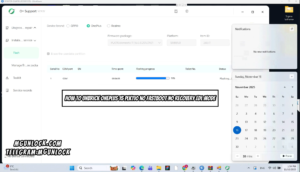
- Login OplusFlashTool.exe
- Select Firmware
- Click “Start” button
- Conect Phone to PC, Enter EDL Mode
- Wait until success, once done. Unplug device and switch it ON >>>Done All

4 Responses
Ciao, volevo sapere il tuo prezzo.
Contact me on telegram or WhatsApp
Thanks in support of sharing such a fastidious thinking, paragraph is nice, thats why i have read it entirely
Just desire to say your article is as amazing.
The clarity in your post is just excellent and
i can assume you are an expert on this subject. Well with your permission allow me to grab
your feed to keep up to date with forthcoming post.
Thanks a million and plezse keep up the enjoyable work.