Official OnePlus Authorized Server Login
15-Minute Remote Turnaround
100% Money-Back Guarantee
Rating: ★★★★★ 4.9/5 (MGunlock Lab)
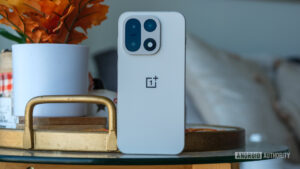
Is your OnePlus 15 (PLK110) stuck on the boot logo, trapped in Fastboot mode, displaying “System Destroyed”, or completely unresponsive with a blank black screen?
Whether you experienced a failed OTA update, regional cross-flashing issue, or corrupt kernel/root binary, this official stock firmware flash file is your definitive remedy.
Important Engineering Notice: Modern OnePlus Snapdragon devices strictly require authentic factory server authorization tokens inside OplusFlashTool. You can follow our complete technical walkthrough below, or let our certified technicians unbrick your phone remotely in under 20 minutes via UltraViewer/AnyDesk.
Fastest & Safest SolutionWorldwide Remote Assistance via AnyDesk / UltraViewer
OnePlus 15 (PLK110) Remote Unbrick Service
Skip the frustration of hunting for expired server tokens and risking permanent motherboard failure. Our certified senior engineers connect remotely to your PC, provide authorized factory credentials for the Oplus Flash Tool, and completely restore your OnePlus 15 back to factory stock within 15–20 minutes.
Authentic encrypted stock OFP firmware matching your regional model (China, Global/EU, or India/US).
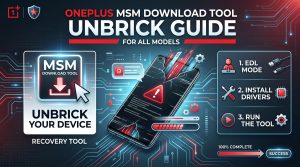
Step-by-Step Process for Unbricking Using MSM / Oplus Tool
Step 01
Download and Install the MSM Tool
Download the MSM Tool / OplusFlashTool compatible with your OnePlus 15 (PLK110). Extract the downloaded zip file into a clean root folder on your PC (e.g., C:\OnePlus15_Unbrick\).
Step 02
Install Qualcomm USB Drivers (Visual Walkthrough)
Open Device Manager on your Windows PC (right-click the Start Menu > Device Manager). Look under the “Ports (COM & LPT)” or “Other devices” section.
Download the Qualcomm & MTK driver pack, double-click the installer, and follow the exact installation screens below:
Figure 1: Windows Security PromptSelect: “Install this driver software anyway” / Always allow installation
When Windows displays the security warning regarding driver publisher verification, click “Install this driver software anyway” to allow the low-level serial driver to bind to your hardware COM ports.
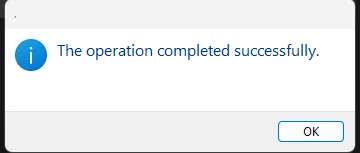
Figure 2: Installation CompletedSelect: “Yes, restart my computer now” to apply port bindings
Select “Yes, restart the computer now” and click Finish. Restarting ensures that the Windows USB stack registers the Qualcomm HS-USB QDLoader 9008 protocol properly.
Step 03
Boot the OnePlus 15 into EDL (Emergency Download Mode)
Emergency Download (EDL) mode allows direct access to the Snapdragon chipset’s primary bootloader:
Power off your OnePlus 15 completely.
Connect one end of the USB cable to your PC motherboard.
Press and hold both Volume Up + Volume Down buttons on the phone.
While holding the buttons, insert the USB-C cable into the device.
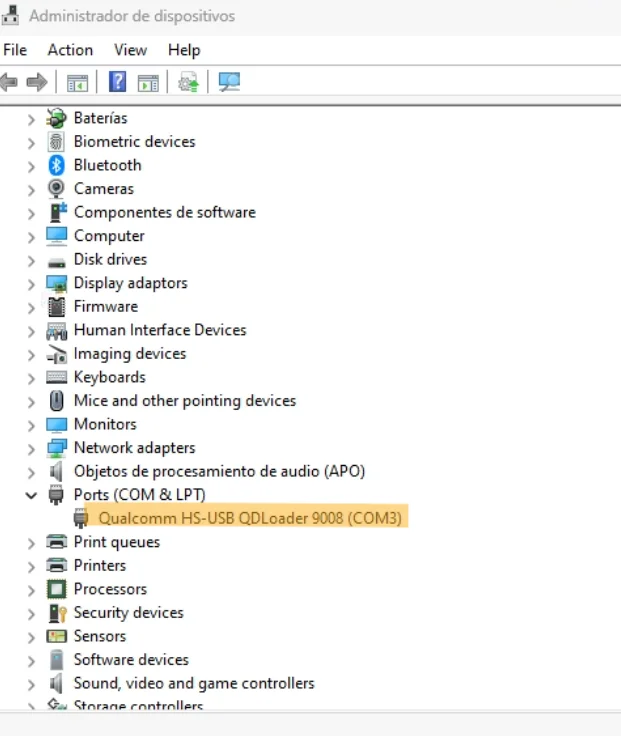
The screen will remain pitch black. Release the buttons once Qualcomm HS-USB QDLoader 9008 appears under COM ports in Windows Device Manager.
EDL Hardware Button Sequence
VOL UP+VOL DOWN+CONNECT USB CABLE
Release keys once Qualcomm 9008 COM port appears in Device Manager
Step 04
Launch the MSM Tool / OplusFlashTool
Open OplusFlashTool.exe as Administrator. Log in with your authorized credentials. Ensure that the device is detected under your active COM port list.
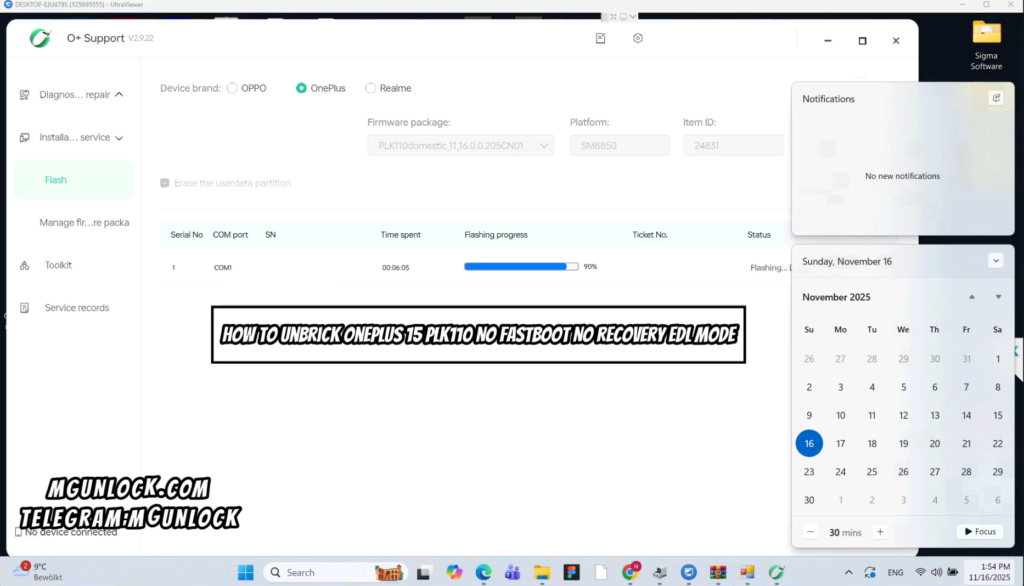
In the MSM Tool interface, click on the Start or Download button. The tool will begin flashing the partitions (xbl, abl, boot, super, modem, dsp, etc.) sequentially. Flashing takes approximately 5–8 minutes.
Step 06
Wait for the Process to Complete
During the flashing process, the MSM Tool will show progress in percentages.
CRITICAL WARNING: DO NOT disconnect the device or close the software during active partition writing. Interrupting UFS flash operations can permanently brick the motherboard!
Step 07
Reboot the Device
Once the flashing process completes with a green success message, unplug your phone from the PC. Press and hold the Power button to boot up the OnePlus 15. The first boot may take 5–8 minutes as the operating system initializes.
⚠️ Required Tool Authorization
OPlus Flash Tool v5.6.44 Password & Login
Password:mgunlock.com/ Note: This is an official paid factory utility requiring server token authentication. Without an authorized engineer account, flashing cannot be initiated.
Double-check the steps and make sure the device is completely powered off. If caught in a bootloop, hold Power + Volume Up + Volume Down for 10-12 seconds until the screen turns pitch black, then immediately hold Volume Up and Volume Down while inserting the USB cable. Also try a different rear USB port or cable.
MSM Tool Doesn’t Detect Device?
Verify that Qualcomm drivers are installed correctly in Device Manager under Ports (COM & LPT). If QUSB_BULK appears, restart Windows with Driver Signature Enforcement disabled and reinstall the Qualcomm 9008 QDLoader drivers.
Flashing Fails / Sahara Communication Error?
Ensure battery charge is above 10%. Avoid USB hubs and Type-C to Type-C cables; use high-grade USB-A to USB-C cables. If you encounter authorization rejection errors, our remote service provides instant authenticated session bypass.
Video Guide: OnePlus Flashing & Unbrick Process Walkthrough
Official MGunlock Tutorial
Guaranteed Resolution
Ready to Revive Your OnePlus 15 Right Now?
Don’t risk permanent hardware damage. Order our certified remote unbricking service and have your OnePlus 15 fully restored by an expert technician in under 20 minutes.