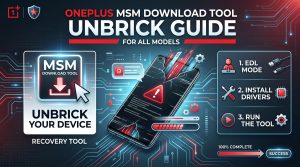
How to Unbrick OnePlus Ace Pro/10T (PGP110, CPH2413, CPH2415, CPH2417) – Complete Official Firmware Flash Guide
Revive your device from boot loops, FRP locks, Fastboot freezes, EDL mode, white screens, and complete bricks with our professional-grade solution.
📊 Updated November 2024 | 📱 All OnePlus Ace Pro/10T variants | 🔧 Official MSM Tool + Stock ROMs
🔧 Professional OnePlus Unbrick Service
Don’t want to risk it yourself? Our expert team handles all OnePlus Ace Pro/10T unbrick scenarios — boot loops, EDL mode, FRP locks, white screens, and complete bricks. We use certified tools and official firmware to get your device running again safely.
👉 Get Unbricked Now – Professional Service💰 Paid Service | ⚡ Fast Turnaround | 🔒 Safe & Secure
Prerequisites & System Requirements
Windows 7 or newer
Stable internet connection
USB cable (data-capable)
Version compatible with Ace Pro/10T
Qualcomm Drivers
USB drivers for EDL mode communication
10% or higher recommended
Charger
Original or quality charger
PC Power
No sleep/hibernate mode
Match your exact model
Safe Source
Official/authorized only
Backup
Save to secure location
Please complete a full data backup if possible. This process will wipe all data on your device. For devices with critical system damage, a backup may not be possible. Proceed only if you understand the risks.
Video Tutorial: Full Unbrick Process Walkthrough
📺 Watch the complete step-by-step unbrick process for OnePlus Ace Pro/10T. Subscribe to our channel for more firmware flashing tutorials!
Step-by-Step Flashing Instructions
Visit the official OnePlus developer portal or authorized distributor website. Download the version specifically designed for OnePlus Ace Pro/10T 5G. The tool typically comes as a compressed archive (like MSM_Tool_OnePlus.zip). Extract the contents to a clean folder on your PC, such as
C:\MSM_Tool\OnePlus or similar. Rename
the extracted folder to keep the contents organized and easily accessible.
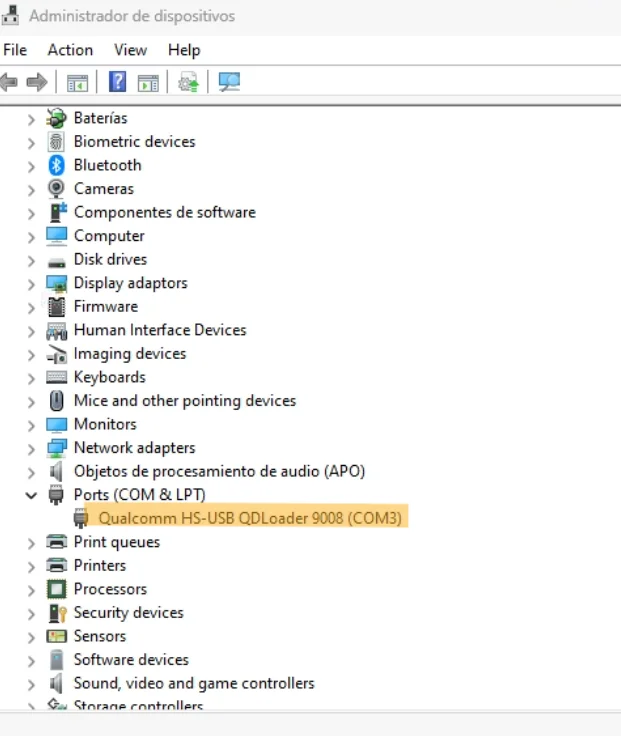
Open Windows Device Manager by right-clicking the Start button and selecting “Device Manager.” Locate “Other devices” or “Universal Serial Bus controllers” and look for any entry showing your device as an “Unknown Device” or with a yellow exclamation mark. Right-click this entry → Update Driver → Browse my computer → Let me pick from a list → Show All Devices → USB_port. If you have the Qualcomm driver installer, browse to it. If not, download from the Qualcomm website (
www.qualcomm.com/developers/software/qualcomm-usb-drivers). Restart your PC after
installation.
Power off your OnePlus Ace Pro/10T completely. Remove any case and don’t use a damaged USB cable. Connect one end of your USB cable to your PC and the other end to your device. This is crucial: the device must be completely powered off before connection. Hold down the Volume Up button while connecting (or connect, then hold Volume Up). If you see the OnePlus logo or boot animation, remove the cable and try again. In EDL mode, the device should show a Qualcomm logo or be detected as “QRD9008” in Device Manager.
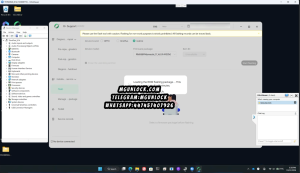
Navigate to your extracted MSM Tool folder and locate the main executable (usually something like MSM_Tool_GUI.exe or similar). Double-click to launch. If a UAC prompt appears, click Yes. The tool should automatically detect your device in EDL mode within 10-15 seconds, showing your device details. If not detected, check the Device Manager again, ensure your Qualcomm drivers are properly installed, try a different USB port, or re-enter EDL mode.
In the MSM Tool interface, look for a “Browse” or “Select” button to choose the firmware package. Click it and navigate to the downloaded firmware file. Double-check the version matches your device model and region. Never select a firmware file for a different device variant — this can cause permanent damage.
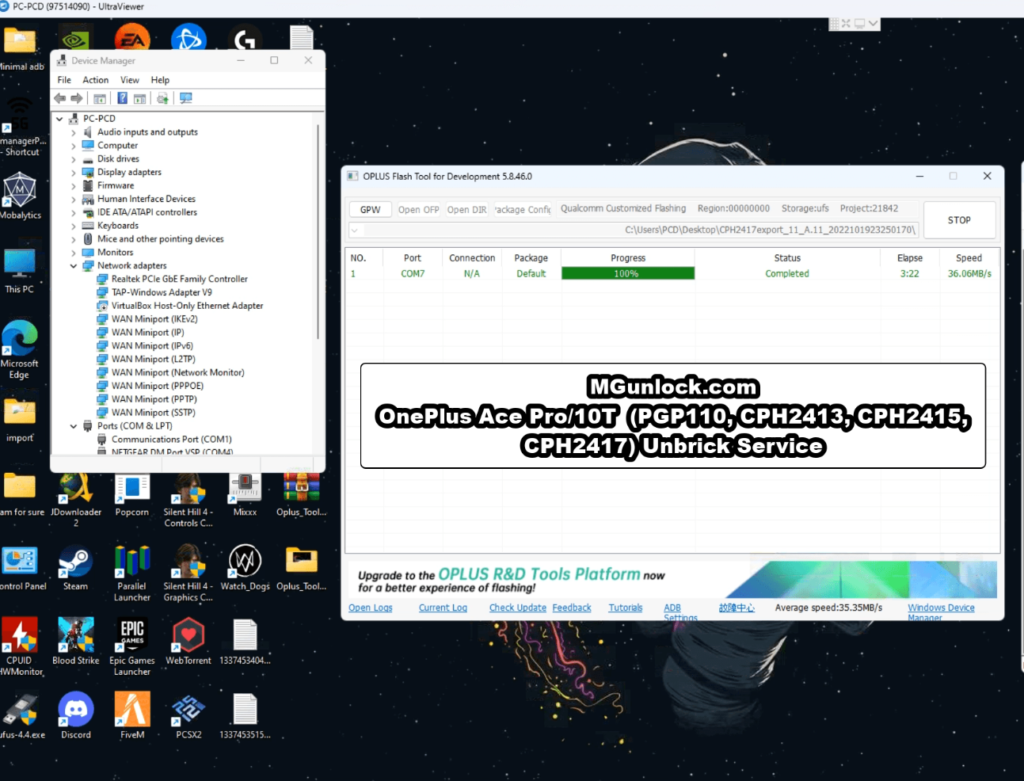
Before clicking Start, ensure your device is firmly connected. Click the main action button (often labeled “Start,” “Begin,” or “Download”). The tool will validate the firmware file, prepare the device, and begin the flashing sequence. Progress is typically shown as a percentage. DO NOT interrupt this process. The process can take 10-45 minutes depending on firmware size and device condition.
When the tool reports “Download Complete” or “Success,” safely disconnect your device. The phone might automatically boot into the setup screens. If it doesn’t boot, wait 10-15 minutes, then try a manual restart by holding the Power button. Test basic functions (calls, SMS, WiFi) before proceeding with personal data restoration.
Firmware Downloads by Model Variant
⚠️ Important: Always verify the firmware version matches your exact device model (found in Settings → About Phone → Model). Incorrect firmware can brick the device further.
Version: 11_C.27 | Build: 2023032714480135
Version: A.10 | Build: 2022101906330000
Version: A.16 | Build: 2022122015170000
Version: A.11 | Build: 2022101923250170
Version: C.42 | Build: 2023061220240122
Troubleshooting & Common Issues
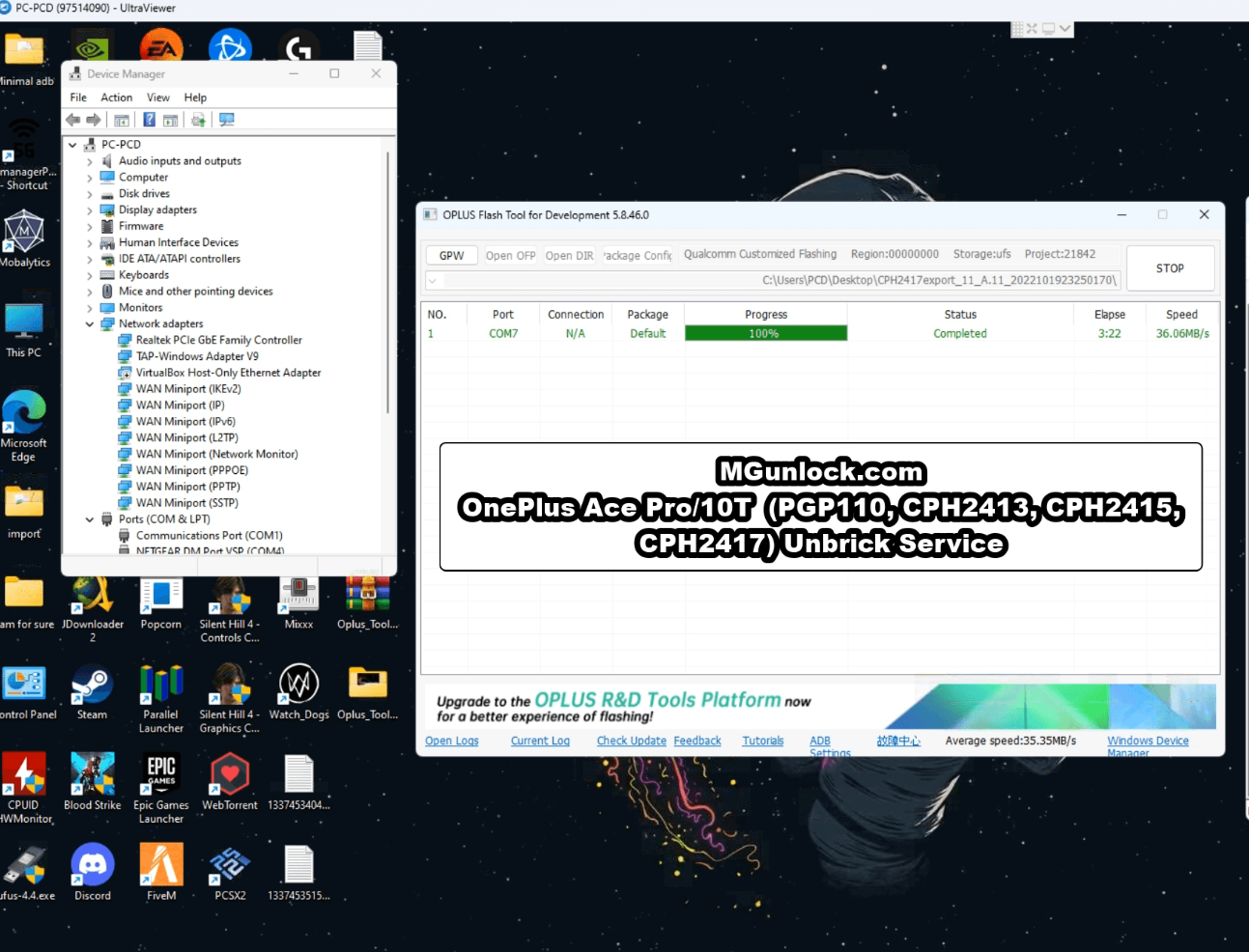
👨🔧 Professional OnePlus Unbrick Service
Our paid OnePlus Ace Pro/10T unbrick service handles the most complex bricking scenarios that standard tools can’t fix. Whether your device is stuck in EDL mode, won’t boot after flashing, or is completely dead – our expert technicians use certified tools and official firmware to safely restore your device.
💰 Paid Service | 🔒 Safe & Secure | ⚡ Fast Turnaround
When to Use Our Service vs DIY
✅ Try DIY If:
- You have technical experience
- Device enters EDL mode reliably
- You have all prerequisites ready
- You’re comfortable with flashing
🛑 Hire Our Service If:
- Device won’t enter EDL mode
- Multiple DIY attempts failed
- You’re not comfortable with flashing
- Device has hardware damage
- You need guaranteed results
📞 Contact Us for Unbrick Service
Our OnePlus Ace Pro/10T unbrick service is available now. Contact us via the channels below and our team will help you recover your device safely and quickly.
⚠️ OPlus Flash Tool is a paid tool – authorization is required. Our service includes tool access, firmware, and expert assistance.