Technician Status: ONLINE (Avg Response ~3m)
|
100% Zero-Risk No-Fix No-Fee Policy
MGUNLOCK LAB
Factory EDL & Firmware Recovery
Oplus unbrick tool
Table of Contents

oneplus-msm-download-tool-unbrick-guide

Factory Gateway Online
PORT: QDLOADER 9008 INTERFACE: MSM TOOL OS: WINDOWS 10 / 11
REV: MSM-V4.0-ULTIMATE

Watch Video Guide: OnePlus MSM Download Tool Unbrick

📺 MGUNLOCK OFFICIAL
● Official Factory Engineering Publication

How to Unbrick Your OnePlus Device
The Ultimate MSM Download Tool Guide

If your OnePlus phone is stuck in a bootloop, completely unresponsive, or displaying a black screen, it is likely “hard-bricked.” While standard fastboot commands won’t work in this state, you can revive your device using the MSM Download Tool.

This factory-level utility flashes the stock OxygenOS firmware directly via Qualcomm’s Emergency Download (EDL) Mode.

Black Screen / EDL 9008
Hard-Bricked State
Stuck in Bootloop
Fastboot Unresponsive
Factory OxygenOS Restore
Qualcomm EDL Flashing
MsmDownloadTool_Session.log
> Initializing MSM Download Tool…
> Bypass Login: User Type set to ‘Other’
> Target Region Configured
> Waiting for EDL Device connection…
> Found: Qualcomm HS-USB QDLoader 9008
> Sahara Protocol PASS. Flashing stock image…
> Writing system images: boot, recovery, system…
> [████████████████████] 100%
> Download Complete. Rebooting into OxygenOS…
Utility
MSM Download Tool
Operating System
Windows 10 / Windows 11
Interface Mode
Qualcomm HS-USB QDLoader 9008
Target Firmware
Stock OxygenOS ROM
Recommended Safe Route

OnePlus Certified Remote Unbrick Service

Running into driver errors, Sahara protocol failures, or tool authorization locks? Our technical team connects remotely to configure your environment, handle server credentials, and safely unbrick your OnePlus phone back to stock working condition.

Fixes Hard-Bricked Black Screen
Fixes Bootloops & Fastboot Errors
Official Server Authorization
Guaranteed Remote Recovery
Manual Flashing – Prerequisites & Risks
  • ❌ Full Data Loss: This process completely wipes all storage on your device and re-locks your bootloader.
  • ❌ Driver Signature Enforcement: Unsigned Qualcomm drivers will be blocked by Windows unless Driver Verification is explicitly disabled.
  • ❌ EDL Timeout: Devices automatically exit EDL mode if flashing doesn’t begin within 10–15 seconds of connection.
Prerequisites Checklist
  • ✔️ Qualcomm USB Drivers: Qualcomm HS-USB QDLoader 9008 drivers installed for PC communication.
  • ✔️ Matching Firmware: Exact firmware package for your model and region (NA, EU, IND).
  • ✔️ Windows System: Reliable PC running Windows 10 or Windows 11 with driver enforcement disabled.

Step-by-Step Unbricking Guide

01
Launch the Tool
Extract the downloaded firmware zip file to your desktop. Right-click MsmDownloadTool_V4.0.exe (or your version’s executable) and select Run as Administrator.
02
Bypass Login & Select Region
On the login prompt, change the User Type dropdown menu to Other and click Next. Then click the Target button at the top and select your target region (e.g., EU, O2, India) to match your downloaded firmware.
Windows Security Driver Popup
Fig 1: Driver Security Authorization “Install anyway”
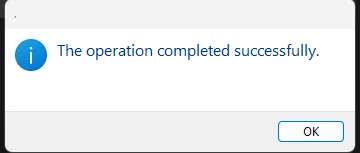
Driver Setup Complete Restart
Fig 2: Kernel Port Binding “Restart now”
03
Arm the Flasher
Click the 🟢 Start button in the upper-left corner of the window before connecting your phone. This configuration allows the tool to immediately capture the device as soon as it interfaces with the PC.
04
Boot into EDL Mode
Power down your phone completely and leave it off for about 60 seconds. Press and hold both the Volume Up + Volume Down buttons simultaneously. While holding the buttons down, connect the phone to your PC using the official USB cable.
Hardware Key Combo — EDL Mode Entry
VOL UP (+)
+
VOL DOWN (−)
+
CONNECT OFFICIAL USB CABLE
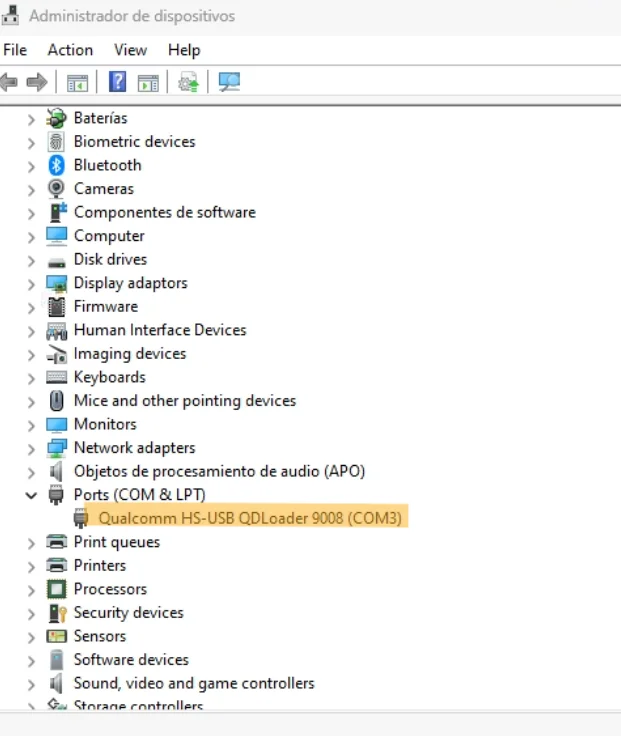
Verify in Device Manager → Ports (COM & LPT) → Qualcomm HS-USB QDLoader 9008
05
Monitor Flashing & Reboot
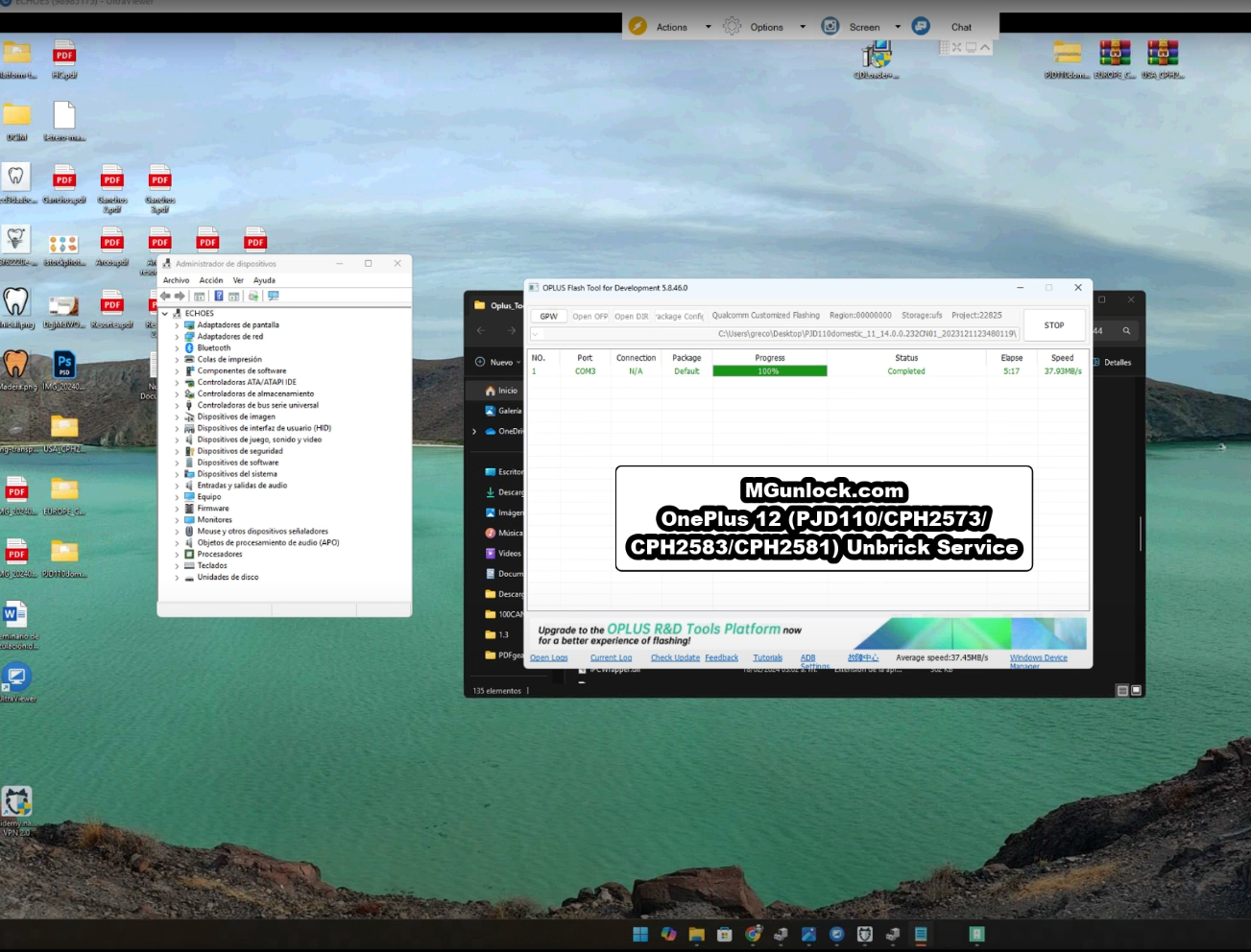
Once detected as Qualcomm HS-USB QDLoader 9008 in Device Manager, the MSM Tool will automatically begin downloading the system images. The flashing process takes roughly 5 to 10 minutes. Once finished, the tool will display a green Download Complete message, and your phone will automatically reboot into the stock OxygenOS setup wizard.
Oplus Flash Tool Interface
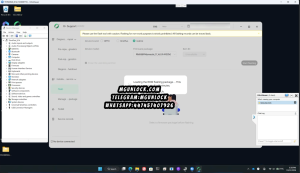
Fig 3: MSM Flashing Interface Bypass Login → Arm Flasher → Connect EDL → Flashing Complete
IMPORTANT NOTE: This process completely wipes all storage on your device and will re-lock your bootloader. Ensure your PC is running Windows 10 or 11.
⚡ Quick Unbrick Summary:
  1. Download Qualcomm USB Drivers and install with Driver Signature Verification disabled.
  2. Extract firmware zip and run MsmDownloadTool_V4.0.exe as Administrator.
  3. Bypass Login prompt by changing User Type to Other and click Next.
  4. Select target region and click the 🟢 Start button in the top left.
  5. Power down phone for 60s, hold Vol Up + Vol Down, and plug in USB cable.
  6. Wait 5–10 minutes for green Download Complete message → Phone auto-reboots into OxygenOS.
Tool & Service Authorization
MSM Download Tool & Server Authentication
Archive Password: mgunlock.com
Newer OnePlus devices require server-based login credentials. If your tool fails at the login or token authorization step, use our remote service below:

OnePlus Firmware (Flash Files) & Tool Downloads

Download the firmware package matching your specific OnePlus model and geographic region:

OPlus / MSM Flash Tool Executable

Password: mgunlock.com · Run as Administrator
OplusFlashTool_v5.6.44.0_for_Sales_MGUNLOCK.COM.rar
Download Tool

Qualcomm HS-USB QDLoader 9008 Drivers

Required 64-bit Signed Drivers for Windows 10 & 11
Qualcomm_Drivers_QDLoader.rar
Download Drivers

Troubleshooting Common Errors

Error Symptom Root Cause Actionable Solution
Sahara Communication Failed Connection timing mismatch or faulty USB interface. Unplug the USB cable, hold down Power + Volume buttons to reset the phone, click Stop then Start in the tool, and reconnect the phone while holding the Volume keys. Try using a USB 2.0 port.
Device Missing in Device Manager Missing or unsigned drivers. Disconnect the device. Reinstall the Qualcomm drivers, make sure Windows Driver Signature Verification is disabled, and try another USB cable.
Tool Displays “Waiting for Device” Phone dropped out of EDL mode. Devices leave EDL mode automatically if flashing does not start within 10–15 seconds. Ensure you click Start in the tool prior to connecting your device.

Frequently Asked Questions

Will using MSM Download Tool erase all data on my phone?
Yes. The MSM Download Tool completely wipes all storage partitions on your device and re-locks your bootloader during the stock flashing process.
Why does the phone exit EDL mode so quickly?
OnePlus devices naturally drop out of EDL mode after 10–15 seconds if no active flashing process captures the COM port. Always click Start in the MSM tool before plugging in your device.
How do I bypass the login screen on MSM Download Tool?
On the initial login dialog prompt, change the User Type dropdown menu to Other and click Next to enter the main flashing interface.
Instant Technical Support

Encountering Persistent Errors?

If you run into specific error messages during the process, contact our technical team with your device model, error message, and Windows version for direct assistance.
Related Posts

Leave a Reply

Your email address will not be published. Required fields are marked *