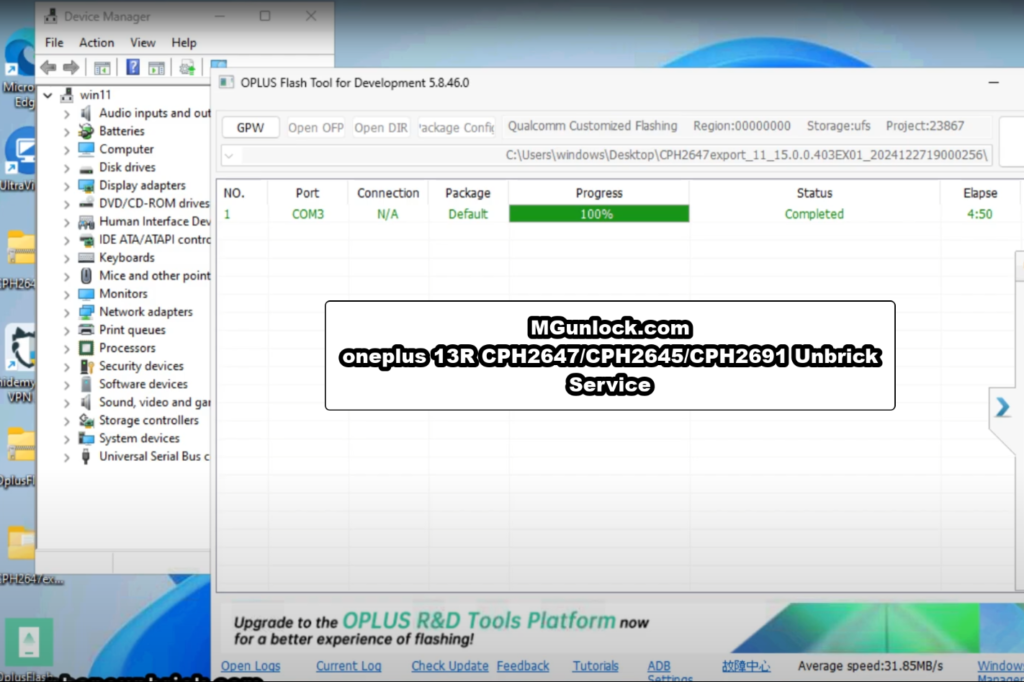
How To Unbrick OnePlus 13R
Complete recovery guide for OnePlus 13R variants (CPH2645, CPH2691, CPH2647) using official factory flash files.
Watch the full step-by-step video tutorial demonstrating the EDL detection and OPlus Flash Tool unbrick process:
CPH2645 Firmware
Build: CPH2645GDPR_11_15.0.0.403EX01
CPH2647 Firmware
Build: CPH2647export_11_15.0.0.403EX01
CPH2691 Firmware
Build: CPH2691export_11_15.0.0.501EX01
Required Flashing Tools & Drivers
OPlus Flash Tool v5.6.44
Official tool used for unbricking and EDL flashing.
Qualcomm QDLoader Drivers
Required for Windows to detect Qualcomm 9008 EDL port.
Download & Extract Driver Package
Extract the Qualcomm_Drivers_QDLoader.rar archive to your computer.
Run Setup & Default Directory
Double-click the installer setup file. The default installation path does not need to be changed.
Windows Security Confirmation
If a security alert appears, choose “Always allow / Install this driver software anyway”.
Restart Computer
Select “Restart the computer now” to finish installing and activate the drivers.
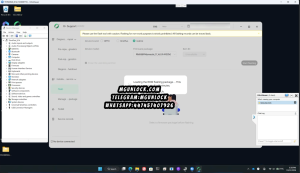
Installation Screenshots & Verification
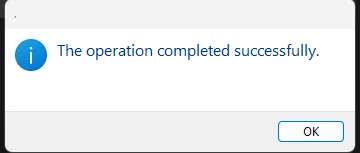
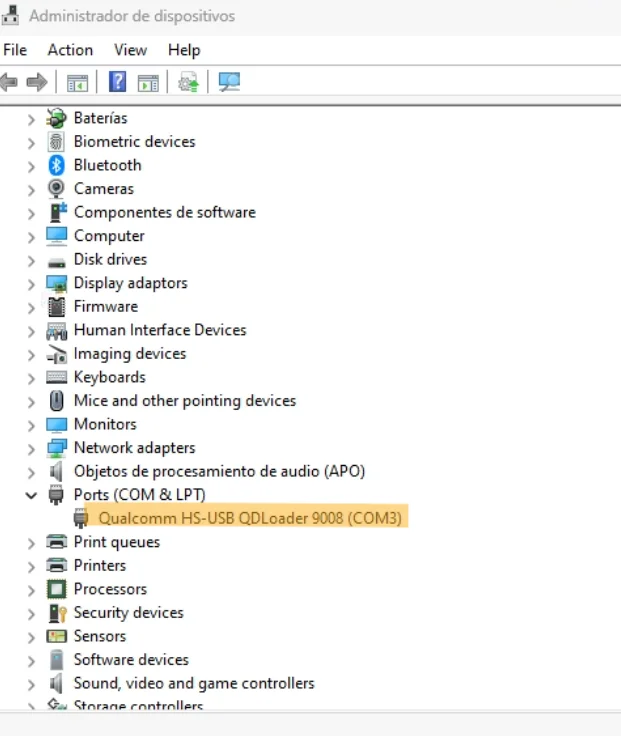
OnePlus devices require EDL Mode (Emergency Download) to establish direct communication with the OPlus Flash Tool:
- Connect one end of the USB cable directly into your Windows PC (use a rear USB 2.0/3.0 port).
- Power OFF the OnePlus 13R completely (wait 10 seconds for the vibration).
- Press and hold Volume Up (+) and Volume Down (-) buttons simultaneously.
- While holding both buttons, plug the USB Type-C cable into the OnePlus 13R.
- Release the buttons as soon as your computer makes the connection sound or when
Qualcomm HS-USB QDLoader 9008appears under Ports (COM & LPT) in Windows Device Manager.
Extract Files in Same Directory
Extract the downloaded ROM (.7z) and the Oplus Flash Tool RAR into the same dedicated folder on your local drive (e.g., C:\OnePlus13R_Unbrick\).
Launch & Login to OplusFlashTool
Run OplusFlashTool.exe as Administrator. Log in using your authorized technician credentials.
Load the Firmware
Click browse/select inside the tool interface and point to the unzipped OnePlus 13R firmware files.
Click “Start”
Hit the Start or Download button. The tool is now waiting for the device connection.
Connect Device in EDL Mode
Hold Volume Up + Down and connect the USB cable. The tool will automatically detect the phone on COM port and start flashing immediately.
Wait for Completion & Reboot
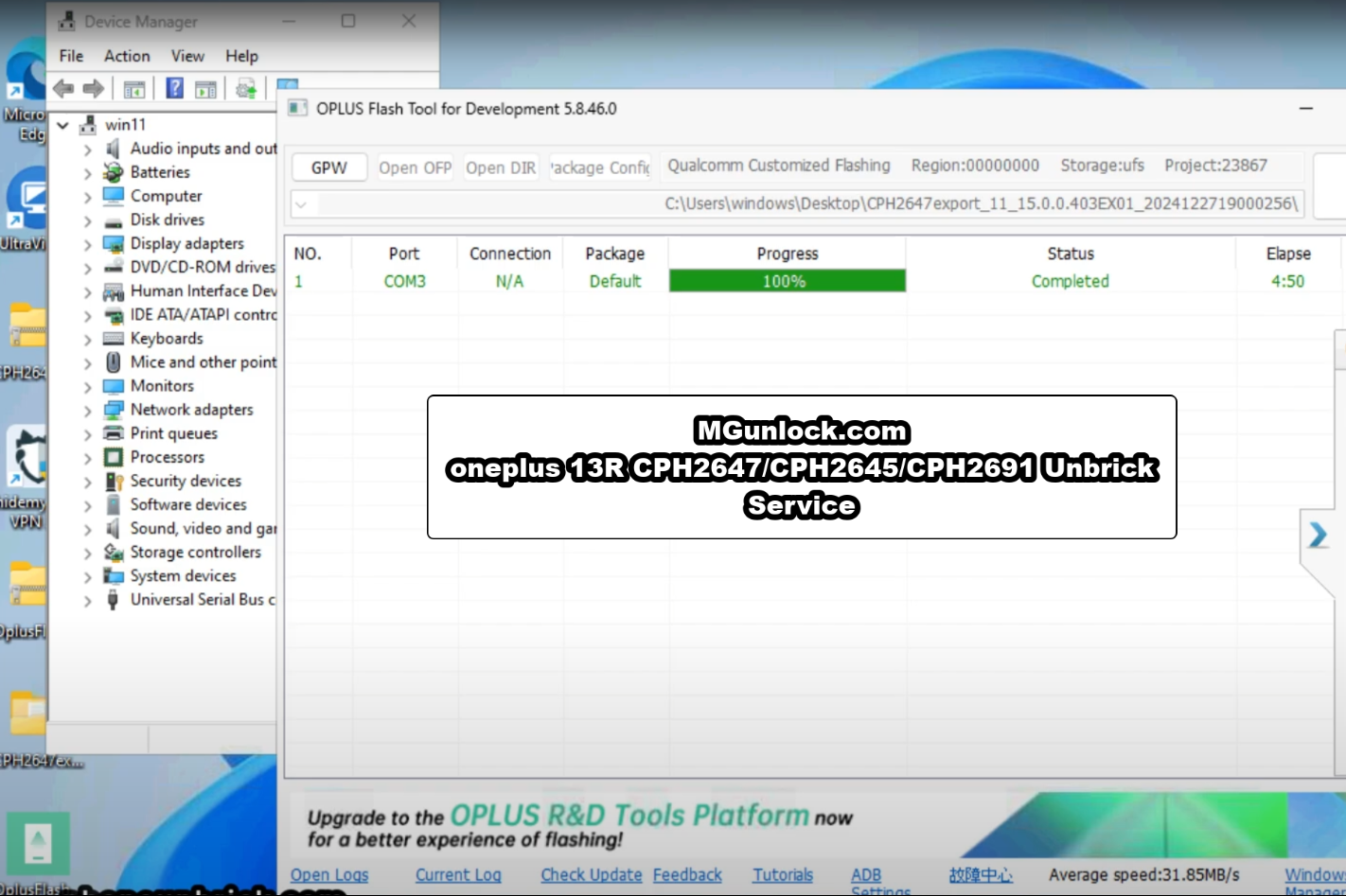
Do not disconnect the cable while flashing. Once you see the green 100% / Pass message, unplug the phone and power it ON. Your OnePlus 13R is now unbricked!
Ensure the device is powered fully off. If it reboots into Fastboot or restarts, try holding only Volume Up or try a different high-speed USB data cable and port.
Open Windows Device Manager. If you see an exclamation mark under Other Devices or QUSB_BULK, reinstall the Qualcomm QDLoader driver and restart your PC.
Ensure you are not using a front USB hub. Re-extract the firmware to verify no archives are corrupt, or perform a full factory reset after unbricking.
Need Help Unbricking Your OnePlus 13R?
The OPlus Flash Tool requires official server login credentials. If you don’t have authorization or need instant remote unbrick assistance via TeamViewer / UltraViewer, our team is ready to help!
One Response
Thanks for sharing your thoughts. I really appreciate your efforts and I am waiting for your further post thank you once again.