How to Unbrick ANY Realme Device
Complete Stock Firmware Flashing Guide
Is your Realme phone stuck in a bootloop, hanging on the logo, displaying a “System Destroyed” screen, or completely hard-bricked with a black screen? Whether you lost Fastboot mode during a failed update or corrupted system partitions, this guide covers low-level EDL 9008 flashing.
By using official stock .ofp firmware and the OPlus Support Setup Tool, you can revive any Realme smartphone model back to factory conditions.
Realme & MediaTek/Qualcomm Universal Flash Service
Bypass server login lockouts, authentication errors, and driver installation hurdles. Our expert technical team connects remotely to supply authorized tool credentials and securely unbrick your Realme smartphone.
Why Use EDL Mode & OPlus Support Tool to Unbrick Realme?
When standard recovery tools or Fastboot commands fail, EDL Mode (Qualcomm HS-USB QDLoader 9008) acts as a low-level hardware flashing interface built directly into your phone’s processor chip. By pairing EDL mode with the OPlus Support Flash Tool, you can overwrite corrupted system partitions and restore original factory OFP firmware directly to your device’s storage chip.
Common Software Issues Fixed by This Method:
- Hard Brick / Dead Phone: Phone refuses to turn on, showing a pitch-black screen.
- System Destroyed / Current Image Destroyed: Bootloader warning preventing system startup.
- No Fastboot / No Recovery Mode: Physical hardware key combinations fail to enter Fastboot or Recovery menus.
- Bootloop & Logo Freeze: Stuck endlessly on the “Realme” splash screen.
- Soft Brick After OTA Update / Root: Device crashes after an official system update, Magisk root, or custom ROM flash.
Complete Supported Realme Models & Firmware Directory
This unbricking solution supports all regional variants (India, Global, China, Europe) and all Realme chipsets (Snapdragon, MediaTek, Unisoc).
🚀 Realme GT & Neo Series (High-Priority Flagships)
- Realme GT Neo 5 Series: GT Neo5 (RMX3706 / RMX3708), GT Neo5 SE (RMX3700), GT Neo5 240W
- Realme Neo 8 Series: Realme Neo 8 (RMX8899), Neo 8 Pro
- Realme GT5 & GT6 Series: Realme GT5 (RMX3820 / RMX3823), GT5 Pro (RMX3888), GT6 (RMX3851), GT6T (RMX3853)
- Realme GT 7 & GT 8 Series: Realme GT7, GT7 Pro, GT8 Pro
- Legacy GT Models: Realme GT 5G (RMX2202), GT Master Edition (RMX3360/RMX3363), GT2 (RMX3312), GT2 Pro (RMX3301), GT3 (RMX3709), GT Neo 2 (RMX3370), GT Neo 3 (RMX3560/3562), GT Neo 3T (RMX3371)
📱 Realme Number Series (1 through 16)
- Realme 1 to 5: Realme 1, 2, 2 Pro, 3, 3 Pro, 3i, 5, 5 Pro, 5i, 5s
- Realme 6 & 7: Realme 6, 6 Pro, 6i, 7, 7 Pro, 7i, 7 5G
- Realme 8 & 9: Realme 8 (RMX3085), 8 Pro (RMX3081), 8 5G, 8i, 8s, 9, 9 Pro, 9 Pro+, 9i, 9 5G Speed Edition
- Realme 10, 11 & 12: Realme 10, 10 Pro, 10 Pro+, 11, 11 Pro, 11 Pro+, 12, 12 Pro, 12 Pro+
- Realme 13, 14, 15 & 16: Realme 13 Pro+, 14 Pro, 14 Pro+, 15, 15 Pro, 16 Series
⚡ Realme Narzo Series
- Narzo 10 to 30: Narzo 10, 10A, 20, 20 Pro, 20A, 30, 30 Pro 5G, 30A
- Narzo 50 to 70: Narzo 50, 50 Pro, 50A, 50i, 60, 60 Pro, 60x 5G, 70, 70 Pro, 70x, 70 Turbo
- Narzo N Series: Narzo N53, N55, N61, N63, N65 5G
🔋 Realme C Series & Note Series
- C Series: Realme C1, C2, C3, C11, C12, C15, C17, C20, C21, C21Y, C25, C25s, C30, C31, C33, C35, C51, C53, C55, C60, C61, C67, C75, C85
- Note Series: Realme Note 50, Note 60, Note 70, Note 80
⚡ Realme P Series
- Realme P1 5G, P1 Pro 5G, P2 Pro 5G, P3, P3 Pro, P4, P4 Pro, P4x, P4 Lite
Step-by-Step Unbrick Guide for Realme Devices
- OPlus Support Flash Tool Package: Download
MGUNLOCK.COM_OPlusSupportSetup.rar(Password:mgunlock). - Qualcomm HS-USB QDLoader 9008 Driver: Download and install standard 64-bit Qualcomm drivers on Windows.
- Official Realme Stock Firmware (.OFP File): Download the official .ofp stock firmware file corresponding to your exact model number (e.g., RMX3706 for GT Neo5, RMX8899 for Neo 8, or RMX3820 for GT5).
MGUNLOCK.COM_OPlusSupportSetup.rar using WinRAR or 7-Zip with the password mgunlock.2. Right-click
OPlusSupportSetup.exe and select Run as Administrator.3. Install the Qualcomm USB drivers. When Windows security warning popups appear, accept and allow them to finish.
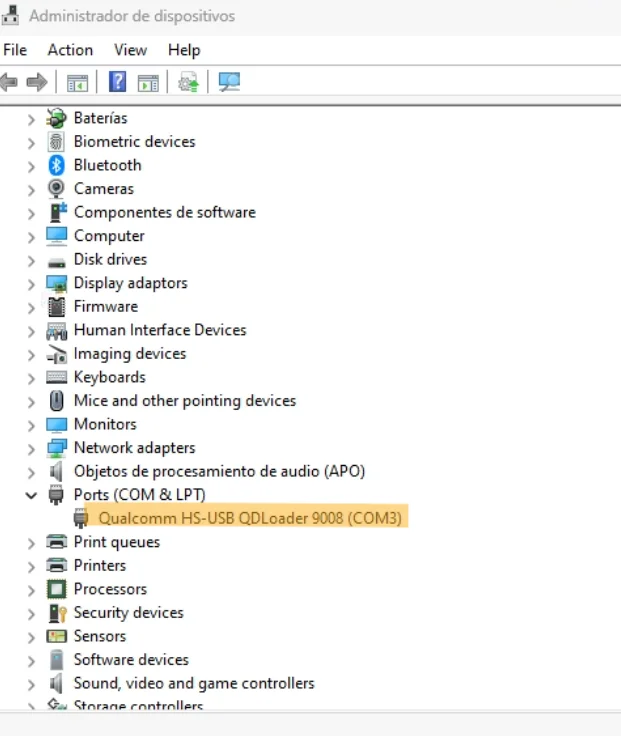
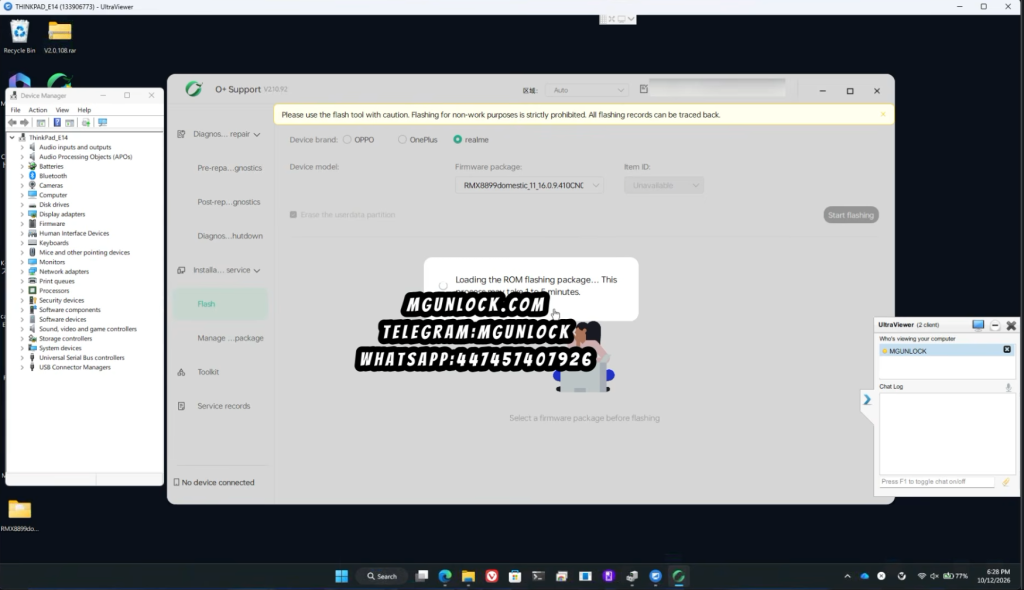
2. Verify that your device is properly connected and recognized in Device Manager and the flashing software interface.
3. Click Start flashing to begin writing firmware files to your phone.

2. Press and hold the Power Button (or
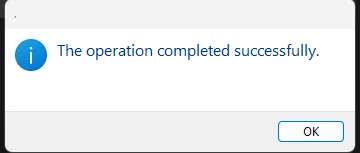
Power + Volume Up) for 10–15 seconds to initiate a force reboot.3. Your Realme device will show the boot logo and start up into the default Android / Realme UI initial setup screen!
mgunlockThis package requires authorized server credentials. If you encounter authorization lockouts or server login errors, you can use our universal unbricking service:
Realme Flash Tools, Drivers & Firmware Packages
Download the official flashing utility package and required drivers:
OPlus Support Flash Tool Setup Package
mgunlock · Official Flashing SuiteQualcomm / MTK USB Drivers
Troubleshooting Common Flashing Errors
| Search Query / Error Code | Root Cause | Fix / Solution |
|---|---|---|
| Device recognized as “QUSB_BULK” | Missing Qualcomm QDLoader drivers. | Open Device Manager, choose Update Driver, select Browse my computer, and force-install the Qualcomm 9008 INF driver. |
| Auth Error / Server Authorization Prompt | Using standard locked flash loaders. | Launch the patched execution tool provided inside the MGUNLOCK.COM_OPlusSupportSetup.rar bundle. |
| Flash fails at 0% or COM Port Disconnects | Bad USB port or low device battery. | Switch to a direct rear USB 2.0 port on your PC motherboard, charge the phone for 20 minutes, and re-enter EDL mode. |
| Stuck in Bootloop after Successful Flash | Residual data or cache partition remnants. | Boot into stock recovery (Power + Volume Down) and perform a Wipe Data / Format Data. |
Frequently Asked Questions (FAQs)
How do I unbrick a Realme GT Neo 5 (RMX3706) stuck in EDL mode or System Destroyed?
Can I unbrick a Realme Neo 8 (RMX8899) with No Fastboot mode?
Where can I download official Realme stock firmware (.ofp files)?
Does unbricking via EDL mode erase internal storage?
Video Walkthrough: How to Unbrick Realme Devices via EDL Mode
MGUNLOCK LABSNeed Help Unbricking Your Realme Phone?
Avoid flashing mistakes or tool authorization lockouts. Contact MGunlock support on Telegram or WhatsApp for authorized remote unbricking assistance.